User Details
Overview
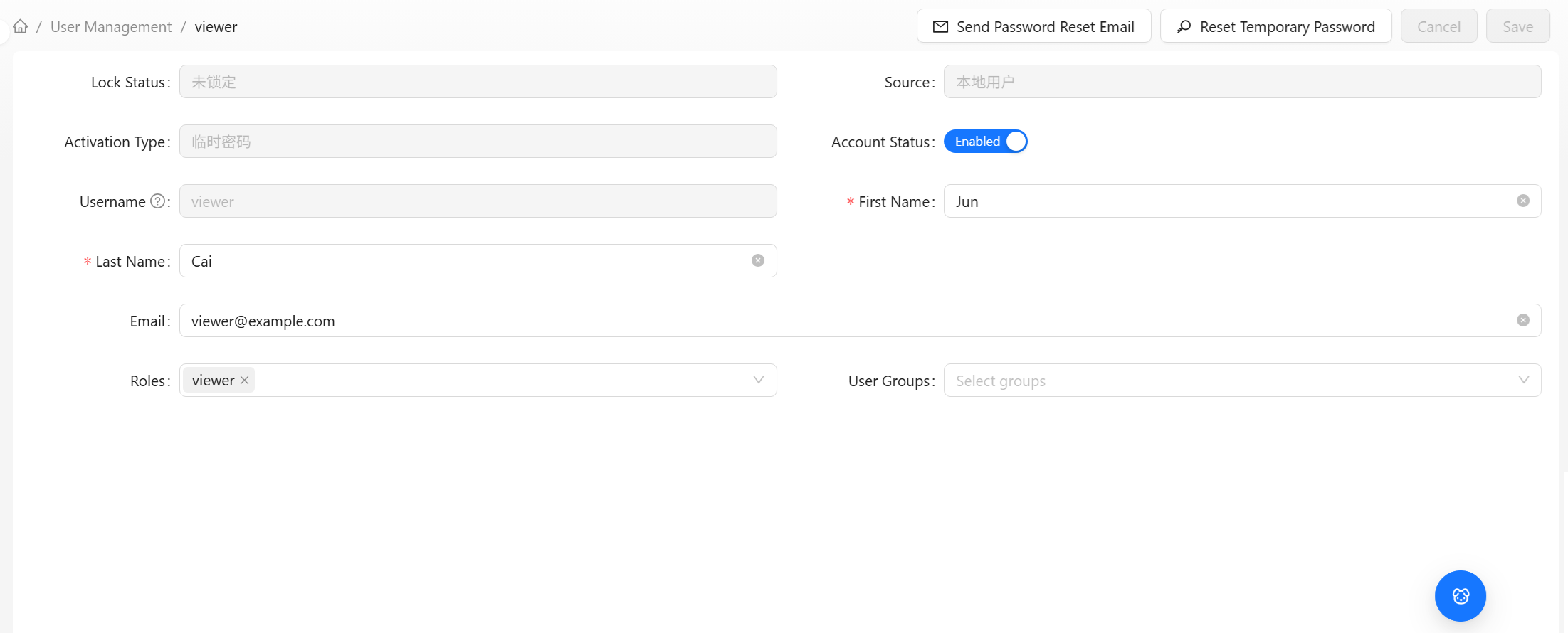
Click a username in the User Management list to enter that user's details page. This page provides a centralized view and editor for all information about a single user: basic profile, account status, role and user group assignments, password management, and more.
Page Layout
The User Details page is divided into a top action bar and a basic information form:
- Top action bar: Breadcrumb navigation, temporary password reset, save/cancel buttons
- Basic information form: View and edit user profile information
Top Action Bar
Depending on your permissions, the right side of the action bar provides the following buttons:
| Button | Function | Use Case |
|---|---|---|
| Send password reset email | Sends a password reset email to the user's mailbox | The user forgot their password and wants an administrator to reset it and send it to their registered email (requires the user to have an email, not be the initial account, and not be in the system tenant) |
| Reset temporary password | The administrator directly sets a new temporary password for the user | When the user cannot receive emails and needs an immediate reset |
| Cancel | Discards current unsaved changes and restores original values | Made a mistake and want to revert |
| Save | Submits form changes | Saving after editing information |
Basic Information Form
The form is divided into read-only fields and editable fields.
Read-Only Fields
The following fields are maintained by the system or determined at creation time and cannot be modified on the details page:
| Field | Description |
|---|---|
| Lock status | Shows "Locked" or "Unlocked." Reflects whether the account is locked by an administrator or by the brute-force protection mechanism |
| Source | Local user (created in the system) or external user (synced from an external identity source) |
| Activation type | The activation method used at creation: temporary password / email (shown only when applicable) |
| Username | Login identifier; cannot be changed after creation |
Editable Fields
| Field | Required | Description |
|---|---|---|
| Account status | — | Toggle switch for "Enabled / Disabled." Cannot be changed for the initial administrator account |
| First name | Yes | User's first name |
| Last name | Yes | User's last name |
| No | Contact email. If the user uses email activation or needs password reset emails, a valid email must be provided | |
| Roles | See note below | Roles directly assigned to the user (only shown in business tenant) |
| User groups | See note below | User groups the user belongs to (only shown in business tenant) |
Account Status
Toggle using the Account Status switch:
- Enabled (default): The user can log in normally
- Disabled: The user cannot log in, but the account and data are preserved and can be re-enabled at any time
This is suitable for temporary deactivation (e.g., during leave or investigation) without deleting the account.
Lock Status
Lock status is read-only and reflects the current lock state of the account. Reasons an account may be locked:
- Administrator manual lock: Locked via another administrative interface
- Brute-force protection: Automatically locked by the system after multiple consecutive failed password attempts
A locked account cannot log in. To unlock it, an administrator typically needs to reset the password (see "Password Management" below). The account status will refresh after the reset.
Assigning Roles and User Groups
Role and user group assignments are only visible in a business tenant. User management in the system tenant does not involve the concept of roles.
A user's final permissions come from a combination of two sources — at least one must be selected:
- Roles: Roles directly assigned to the user. You can search and multi-select from the dropdown. It is recommended to keep at least one base role (e.g., "Read-Only User")
- User groups: User groups the user belongs to. The user inherits the role permissions associated with these user groups
- Individual-specific permissions → assign directly under "Roles"
- Team-wide permissions → assign via "User Groups" for easier batch management
- Both can be used simultaneously; permissions are combined (union) and the highest permission takes effect
If no role or user group is selected when saving, the form will display "Select at least one role or user group."
Password Management
Sending a Password Reset Email
Suitable for scenarios where the user forgot their password and has a valid email registered in the system.
- Click the Send password reset email button
- Click Confirm in the confirmation dialog
- The system sends a password reset email to the user's mailbox
- The user follows the email instructions to set a new password
A success message "Password reset email sent" will appear.
This button is only displayed when the user has an email on file, is not the initial administrator account, and you are in a business tenant.
Resetting a Temporary Password
Suitable for scenarios where the user cannot receive emails and needs an administrator to directly set a new password.

- Click the Reset temporary password button to open the dialog
- Enter the new temporary password (at least 8 characters, including uppercase letters, lowercase letters, numbers, and special characters)
- Re-enter the same password in Confirm new temporary password
- Click Confirm to submit
A success message "Temporary password has been reset" will appear. Please securely communicate the new password to the user; the user will need to change it after logging in.
Editing and Saving
- Modify the desired fields in the form (e.g., change email, adjust roles)
- After making changes, the Save button becomes active
- Click Save to submit, or click Cancel to discard changes
- After successful save, a "User updated successfully" message appears, and the form refreshes with the latest data returned from the server
Frequently Asked Questions
Q: How do I disable a user?
On the User Details page, toggle the Account Status switch to "Disabled" and click Save. The user will immediately be unable to log in. The account information is preserved and can be switched back to "Enabled" at any time.
Q: What should I do if a user is locked?
A locked user cannot log in. An administrator can restore access by setting a new password via Reset temporary password. If the lock was triggered by brute-force protection, the lock status will be cleared after the password is reset.
Q: Can I change a username?
No. The username is the unique login identifier for the account and cannot be changed after creation. If you need a different username, please create a new user and (optionally) disable the old account.
Q: How do I grant a user more permissions?
Two ways: directly check more roles under "Roles" on the details page, or add the user to a user group associated with the corresponding roles (see User Group Management).