Role Management
Overview
A Role is a collection of permissions and the core vehicle for access control. Each role defines "which menus are visible" and "what operations can be performed on which resources." Assigning roles to users or user groups completes the authorization process. The Role Management page is used to view, create, and delete roles, and to enter role details to configure their permissions and associations.
Key Features
- Permission templates: Encapsulate a set of permissions as a role for repeated reuse and batch assignment
- Two permission dimensions: UI permissions (menu visibility) and resource permissions (resource access levels)
- System roles + custom roles: Out-of-the-box built-in roles combined with flexible custom roles
- Bidirectional association: Manage a role's users and user groups from the role side, or assign roles from the user/user group side
Role Types
Roles in the system are divided into two types:
| Type | Source | Deletable | Permissions Editable |
|---|---|---|---|
| System role | Built-in (e.g., System Administrator, Read-Only User) | No | No |
| Custom role | Created by an administrator | Yes | Yes |
The system includes two built-in roles: "administrator" (full access) and "viewer" (read-only access). If you need a different combination of permissions, please create a custom role. See Overview - Built-in Roles.
Role List Page
Interface Layout
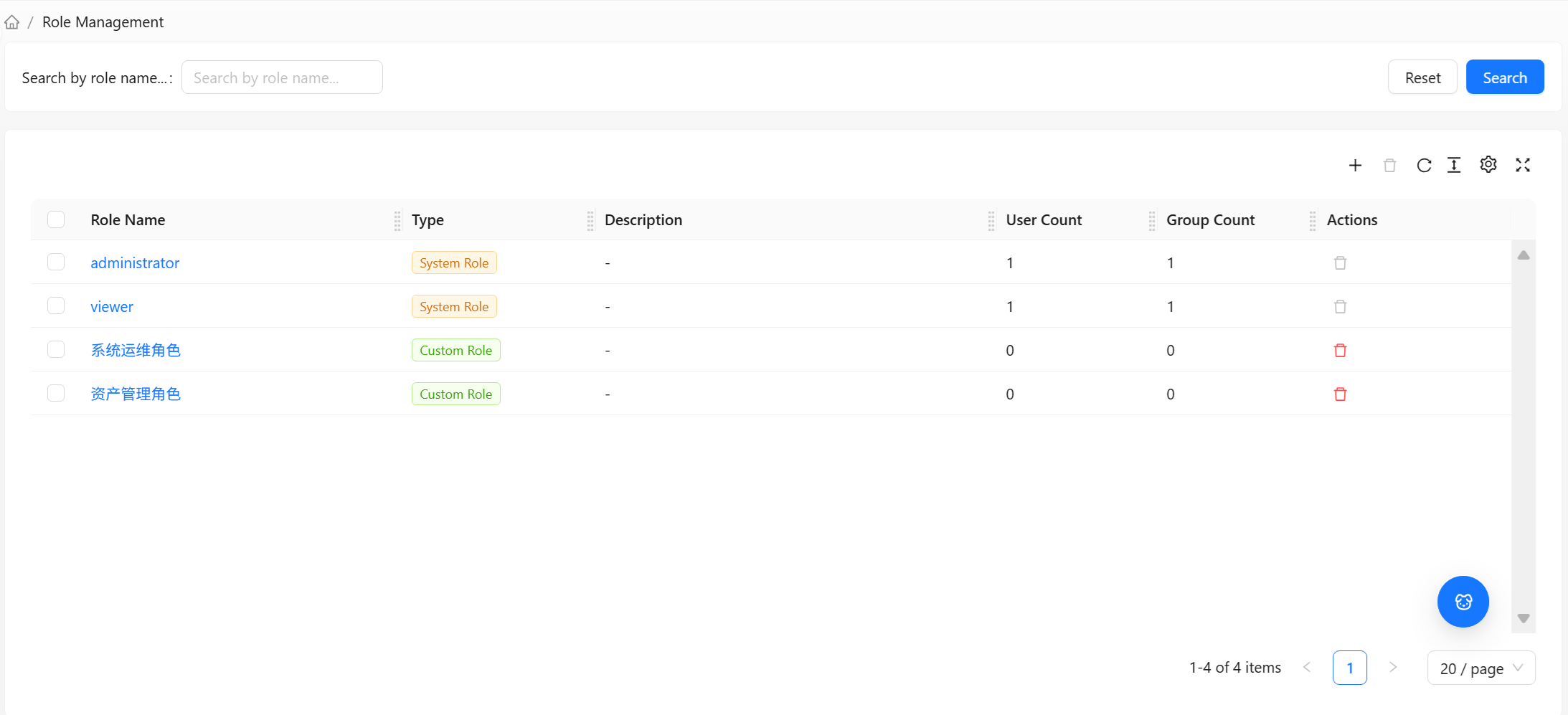
The Role Management list page uses a standard list layout. For common table operations such as column management, density, and pagination, see Data Table Common Operations.
Role List
| Column | Description |
|---|---|
| Role name | Role name; click to enter role details |
| Type | System role or custom role |
| Description | Role description |
| User count | Number of users directly assigned this role |
| User group count | Number of user groups associated with this role |
| Actions | Delete role (only custom roles can be deleted; requires edit permission) |
Search
Enter a keyword in the search box, click Search to query, or click Reset to clear. Supports searching by role name.
Toolbar
| Button | Function | Use Case |
|---|---|---|
| Create | Opens the "Create Role" dialog | Creating a new custom role |
| Batch Delete | Deletes multiple selected roles at once | Bulk cleanup |
| Refresh | Reloads the list | When you want to see the latest data |
Create and delete operations are only visible to administrators with "full access" permission on the "Role" resource.
Creating a Role
Click the Create button in the toolbar to open the Create Role dialog.

Field Descriptions
| Field | Required | Description |
|---|---|---|
| Role name | Yes | The name of the role; it is recommended to reflect its function (e.g., "CI Maintenance Operator") |
| Description | No | Description of the role's purpose |
Creation Steps
- Click the Create button in the toolbar
- Fill in the role name (required) and description (optional)
- Click Create to submit
A "Role created successfully" message will appear upon successful creation, and the new role will immediately appear in the list. A newly created role does not yet have any permissions configured — by default, all menus are invisible and all resources are inaccessible. You need to enter the details page to configure permissions before the role becomes meaningful.
Deleting a Role
Deleting a Single Role
Click the delete icon in the Actions column of the corresponding row, then click Confirm in the confirmation dialog.
- The delete button for system roles is grayed out and cannot be deleted
Batch Deletion
- Select multiple custom roles to delete
- Click Batch Delete in the toolbar
- Click Confirm in the confirmation dialog
When the batch selection includes system roles, the batch delete button cannot be clicked.
After deleting a role, all users directly assigned this role and all user groups associated with this role will lose the corresponding permissions. If some users rely entirely on this role, they will lose access to related features after deletion. Please confirm the scope of impact before deleting.
Entering Role Details
Click the Role name link in the list to enter the Role Details page. Here you can configure the role's two types of permissions and manage its associated users and user groups. See Role Details.