Relationship Type Management
Overview
Relationship types define the kinds of associations that can be established between Configuration Items, describing how one CI is connected to another.
Key Concepts:
- CI Type: Defines "what it represents", such as
Application,Computer,Database, etc. - Relationship Type: Defines "how it connects", such as
Depends On,Runs On,Contains, etc. - Valid Link: Defines which CI types can establish which relationship types, configured in the "Valid Links" tab of CI Type Management
Example:
- The relationship type
Runs Ondefines the semantic meaning of "a runs on b" - A valid link configures "the Database type can connect to the Computer type via the Runs On relationship"
- An actual instance: Database "MySQL-01" --Runs On--> Computer "Server-01"
What this module can do for you:
- View system predefined relationship types (e.g.,
Depends On,Runs On,Contains, etc.) - Create custom relationship types
- Edit or delete custom relationship types
- Import and export relationship type definitions
Interface Layout
The Relationship Type Management page uses a list + detail two-tier structure: the list page displays all relationship types in a table, and clicking any row opens an independent detail page for viewing and editing.
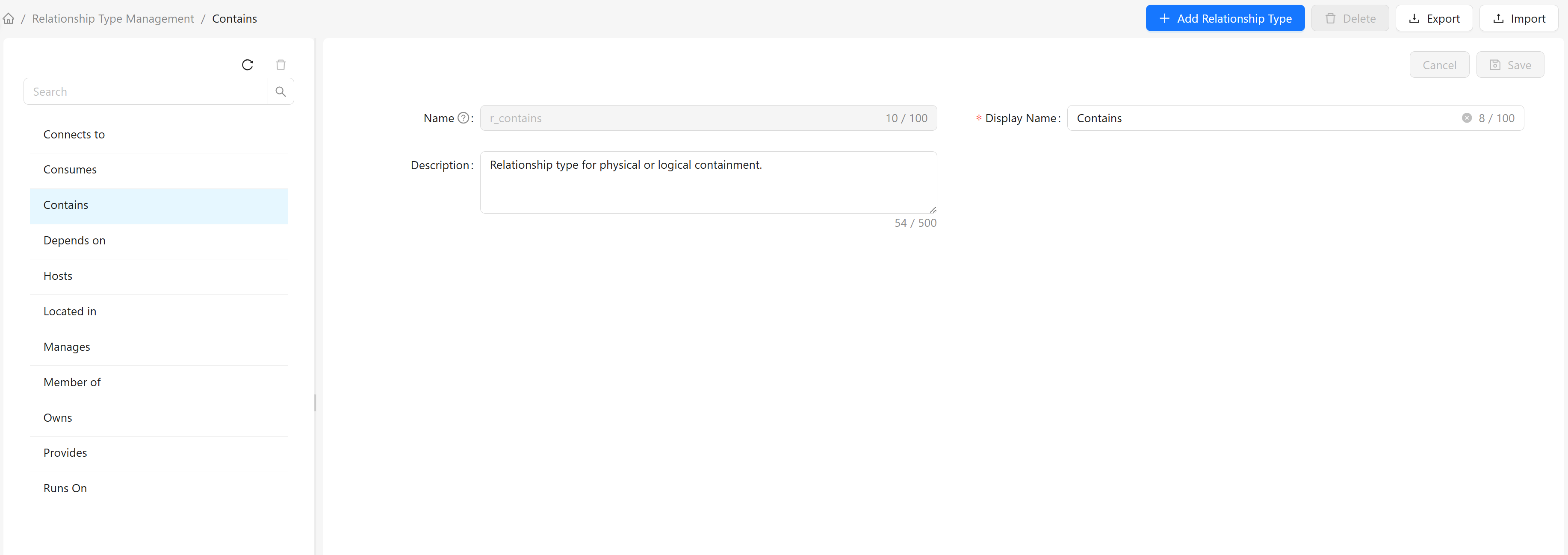
List Page Fields
| Column | Description |
|---|---|
| Display Name | The translated display name for the current language (e.g., Runs On); falls back to the English display name when no translation exists |
| Name | The unique identifier of the relationship type (e.g., r_runs_on) |
| Description | The translated description for the current language |
| Type | Label: blue "Built-in" indicates system predefined; gray "Custom" indicates user-created |
Toolbar Buttons
| Button | Description | Action |
|---|---|---|
| Add Relationship Type | Create a new relationship type | Click to open the creation dialog; saves immediately after filling in |
| Delete (batch) | Batch delete selected relationship types | Enabled after selecting at least one row; built-in types are automatically skipped |
| Export | Export selected relationship types as JSON | Enabled after selecting at least one row; supports multi-select export |
| Import | Import relationship types from a JSON file | Click to open the import dialog; supports "overwrite existing" option |
Row Actions
| Action | Description |
|---|---|
| Click row | Opens the relationship type detail page (where you can edit display name, description, etc.) |
| Delete (inline) | Delete the relationship type; built-in types cannot be deleted |
How to Use
View Relationship Types
- Browse all relationship types directly on the list page (name, display name, description, built-in/custom)
- Click any row to open the detail page for complete information
Search Relationship Types
Use the search box above the list page:
- Enter the relationship type name in the search box
- The list automatically filters to show only matching relationship types
- Clear the search box to restore all relationship types
Create a New Relationship Type
- Click the "Add Relationship Type" button in the list page toolbar
- Fill in the relationship type information in the popup dialog:
- Name: Unique identifier for the relationship type (must start with a letter; only letters, numbers, and underscores allowed; max 100 characters)
- Display Name: Display name for the relationship type (max 100 characters)
- Description: Description of the relationship type's purpose (optional, max 500 characters)
- Click "Save" to complete creation
Edit a Relationship Type
- Click the relationship type to edit on the list page to open the detail page
- Modify the Display Name or Description in the detail page (Name is the unique identifier and cannot be modified)
- Click the "Save" button in the detail page to submit changes
Delete a Relationship Type
Single deletion:
- Find the custom relationship type to delete on the list page
- Click the "Delete" button on that row
- Click "OK" in the confirmation dialog
Batch deletion:
- Check multiple custom relationship types to delete on the list page
- Click the "Delete" button in the toolbar
- Click "OK" in the confirmation dialog (if any built-in types are selected, they will be automatically skipped with a notice)
- Only custom relationship types can be deleted. The "Delete" button is disabled for built-in types, and they are automatically skipped during batch deletion
- If the relationship type is already used by existing valid links, it cannot be deleted (the system will reject and notify)
Export Relationship Types
- Check the relationship types to export on the list page (supports multi-select)
- Click the "Export" icon button in the toolbar
- The system downloads each relationship type definition as a separate JSON file
Import Relationship Types
- Click the "Import" icon button in the list page toolbar
- In the popup dialog, click the upload area and select the JSON file to import (only
.jsonfiles accepted, max 1 file) - To overwrite existing relationship types, check the "Overwrite existing relationship types" checkbox
- Click "Confirm Import" to complete the operation
Built-in Relationship Types
The system provides the following built-in relationship types:
| Name | Display Name | Description |
|---|---|---|
r_depends_on | Depends On | Functional dependency relationship, used for fault impact analysis |
r_runs_on | Runs On | Indicates that software/application runs on a specific platform or system |
r_contains | Contains | Physical or logical containment relationship |
r_member_of | Member Of | Cluster membership or organizational affiliation relationship |
r_hosts | Hosts | Physical host or container platform hosting of upper-layer resources |
r_connects_to | Connects To | Network connection relationship |
r_provides | Provides | Relationship for providing services, resources, or supplies |
r_consumes | Consumes | Consumption or usage relationship |
r_located_in | Located In | Physical location relationship |
r_owns | Owns | Ownership relationship |
r_manages | Manages | Management relationship |
Strong Dependency Relationships
Certain relationship types have a "strong dependency" characteristic, defining mandatory attachment relationships between CIs. Some CIs (such as databases, disks) must be attached to other CIs to be created and cannot exist independently.
Purpose of the Attached CI attribute:
Attached CI(attached_to) is a system attribute defined on the root CI type- It records the ID of the CI that the current CI is attached to
- It is automatically set by the system when creating a strong dependency relationship and cannot be manually modified after creation
Supported strong dependency relationship types:
| Relationship Type | Attachment Direction | Description |
|---|---|---|
Runs On (r_runs_on) | Forward | The source CI is attached to the target CI. For example: a database instance is attached to a computer or database cluster |
Contains (r_contains) | Reverse | The target CI is attached to the source CI. For example: a disk is attached to a computer |
Each CI type can define multiple strong dependency relationships in its "Valid Links" configuration. For example, Database can define both Runs On Computer and Runs On Database Cluster, meaning that when creating a database instance, you must select an instance of one of these types as its attached CI.
Frequently Asked Questions
Q: What is the difference between relationship types and valid links?
A:
- Relationship Type: Defines the semantic category of "how to connect" (e.g.,
Depends On,Runs On), managed centrally in this module - Valid Link: Defines which CI types can be connected by which relationship type (e.g., "Application type can connect to Computer type via
Depends On"), configured in the "Valid Links" tab of CI Type Management
Q: Why is the "Delete" button grayed out for some relationships?
A: The "Delete" button is disabled for built-in relationship types; only user-created custom relationship types can be deleted. During batch deletion, if any built-in types are selected, they will be automatically skipped with a notice.
Q: Will deleting a relationship type affect existing data?
A: Before deletion, the system checks whether any valid links are using the relationship type. If so, the deletion will be rejected with a notification. Please remove all valid links that depend on this relationship type before deleting.
Q: How do I use relationship types with CIs?
A: In the "Valid Links" tab of CI Type Management, select the relationship type to use to establish connections between CI types. See CI Type Management - Valid Links for details.