CI List
Overview
CI List is a core module for viewing and managing Configuration Items in CMDB. By creating different CI list views, you can flexibly organize and display CI data to meet various business needs.
What this module can do for you:
- Create custom CI list views (e.g., "All Servers", "Production Applications", etc.)
- Filter CI data through queries
- Dynamically configure table columns to select attributes to display
- Support batch operations and export functionality
- Create and associate CIs (including multi-step creation with mandatory dependencies)
Key Features
- List Views: The left panel displays categorized system and custom lists
- View Management: Create, edit, clone, and delete custom list views
- Dynamic CI Attribute Display: Automatically selects the attributes to display based on the selected CI type
- Multi-tab Detail Page: View CIs from four dimensions: Details, Configuration Topology, Component Resources, and Change History
- CI Operations: Supports batch deletion, export current list, create CI, and create related CI
- Common Table Capabilities: Column management, advanced filtering, pagination, density, local persistence, and more — see Data Table Operations
Interface Layout
The CI List management page uses a left-right split layout:
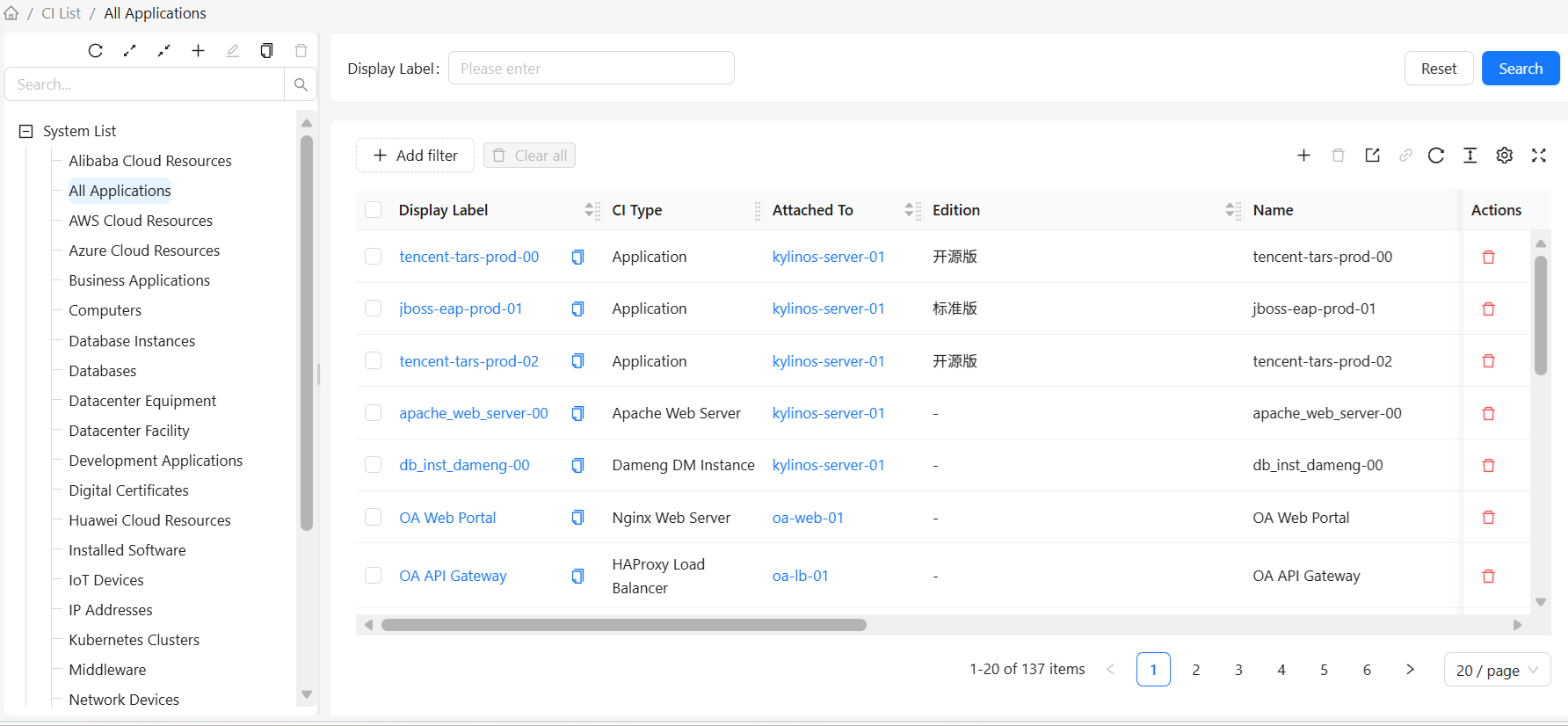
Left: CI Lists
The left panel displays all CI list views, grouped by type:
- System Lists: System predefined list views
- Custom Lists: User-created custom list views
List Operations:
- Add List: Click the "Add" button at the top to create a new list
- Edit List: Select a list, then click the "Edit" button at the top to edit the selected list
- Clone List: Select a list, then click the "Clone" button at the top to clone the selected list
- Delete List: Select a list, then click the "Delete" button at the top to delete the selected list (system lists cannot be deleted)
Right: CI Instance List
The right panel displays CI data for the selected list view:
- Configuration Items: Displays corresponding CI attributes based on the selected CI type
- CI Data Operations: Operations available for CIs listed in the view: create/edit individual CIs, batch delete CIs, batch export CIs, create related CIs, etc.
- For common table operations such as column management, advanced filtering, pagination, and density, see Data Table Operations
By default, the table displays the basic attribute columns for that type along with key columns like "Display Name" and "CI Type"; other attributes can be enabled manually via column settings. Table preferences (columns, density, page size, etc.) are saved independently for each CI type or view — switching types will not overwrite another type's settings.
How to Use
View Configuration Items
- Select a list view in the left panel
- The right panel automatically displays CI data for that view
- Click a CI row to view details
Search Configuration Items
Use the quick search box above the right list:
- Enter the CI's display name in the quick search box, then click the "Search" button
- The list automatically filters to show only matching CIs
- Click the "Reset" button to restore all CIs
Create a Custom List View
- Click the "Add" button above the left list
- Fill in the list view information in the popup dialog:
- Name: Unique identifier for the list view
- Display Name: Display name for the list view
- Root CI Type: Select the CI type to query
- Type Filter: Set options such as including subtypes
- Attribute Conditions: Add filter conditions (optional)
- Click "OK" to save
Edit a List View
Note: Only custom list views can be edited. System lists cannot be edited.
- Select the list you want to edit in the user list
- Click the "Edit" button at the top
- Modify the list view configuration
- Click "OK" to save
Clone a List View
- Select the list view you want to clone
- Click the "Clone" button at the top
- Modify the cloned list name (the name must be unique)
- Click "OK" to save
Delete a List View
Note: Only custom list views can be deleted. System lists cannot be deleted.
- Select the list view you want to delete in the CI list
- Click the "OK" button in the popup menu
- Confirm the deletion
List View Configuration
The CI List configuration page is used to create and edit CI lists. For detailed steps, see List View Configuration
CI Instance List
You can perform create, read, update, delete, and export operations on the CI instance list. For detailed steps, see CI Directory
System Lists vs. Custom Lists
| Feature | System Lists | Custom Lists |
|---|---|---|
| Source | System predefined | User created |
| Modification | Cannot be edited or deleted | Can be edited and deleted |
| Purpose | Provide common views | Meet specific needs |