Collection Template
Overview
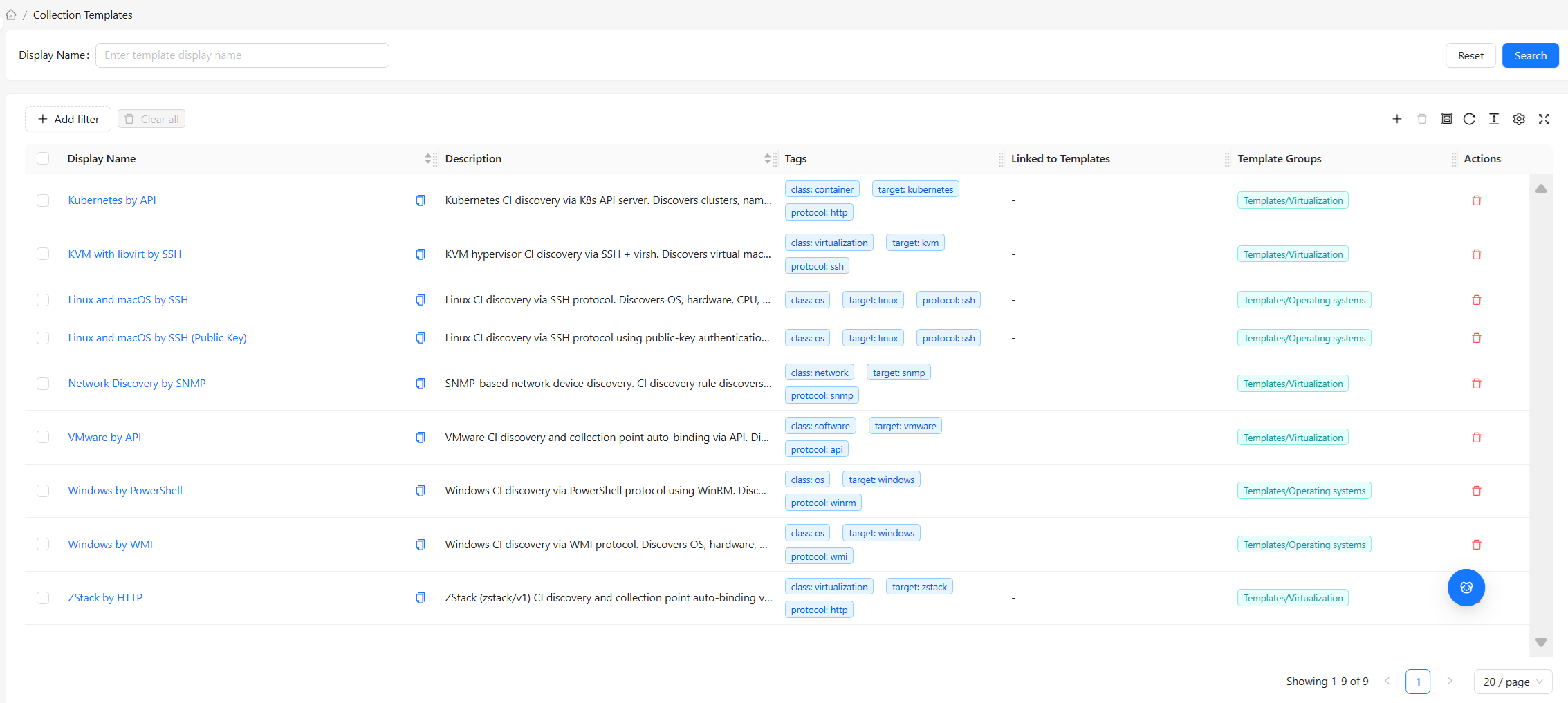
A Collection Template is a set of reusable collection configurations. When you have dozens or hundreds of similar devices (e.g., 50 switches of the same model), configuring discovery rules for each one is both repetitive and error-prone. Collection Templates solve this problem: define a set of discovery rules and configurations once in a template, then associate it with those devices — all devices instantly share the same collection strategy. When adjustments are needed later, just modify the template, and all devices sync the changes.
The relationship between templates and Collection Points is like a "job description" and an "employee" — the description defines responsibilities, the employee applies it and starts working; one description can be reused for many people.
Key Features
- Define once, reuse everywhere: One set of configurations can be associated with any number of collection points
- Unified updates: Modifying a template syncs to all associated collection points — no inconsistency from device-by-device changes
- Template inheritance: Templates can link to other templates, layering into a configuration hierarchy
- Group organization: Use template groups to organize large numbers of templates
- Exportable: Export template configurations for cross-environment migration or backup
List Page
Default Columns
| Column | Description |
|---|---|
| Name | The template's display name. Click to enter Details |
| Description | The template's purpose description |
| Tags | Key-value pair tags on the template |
| Associated Templates | Other templates this template links to (inheritance relationship) |
| Template Group | The template group it belongs to |
For common table operations such as column management, filtering, pagination, and density, see Common Data Table Operations.
Filters
Supports fuzzy search for templates by Name.
Top Bar Actions
- New: Create a new template (see Create below)
- Bulk Delete: Select multiple rows and delete them at once
- Export: Export the selected template configurations
- Refresh: Reload the list
Details Page
Click a template name in the list to enter its details page. The details page uses the same top sections + tabs layout as Collection Point Details, just with template-specific fields:
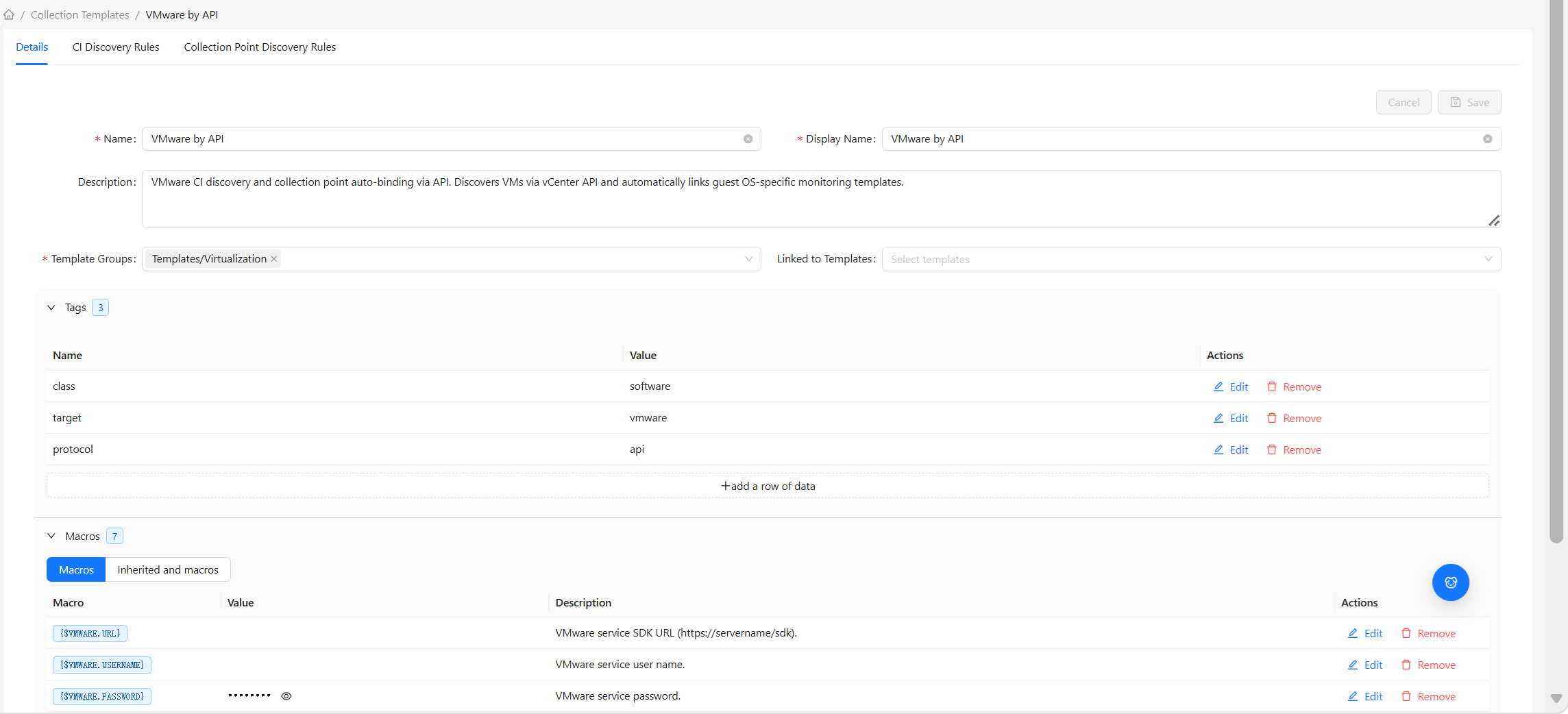
| Area | Content |
|---|---|
| Top: Overview | The template's basic info: name, description, associated templates, template group, tags, etc. |
| Top: Tags | Key-value pair tags on the template |
| Top: Macros | Template-level variable definitions (can be overridden by collection points) |
| Tab: CI Discovery Rules | The template's "data → CI" mapping rules, which sync to associated collection points |
| Tab: Collection Point Discovery Rules | The template's discovery rules for generating collection points from dynamic data, which sync to associated collection points |
Both share the same layout, and the two discovery rule tabs have the same meaning (see Collection Point Details — Discovery Rules). The CI Discovery Rules can be configured with discovery options (collect installed software / applications), CI filters, etc. — for full field descriptions, see Collection Point Details — CI Discovery Rules. The difference is in the top "Overview": a collection point's overview contains connection info (interface, agent), while a template's overview contains configuration info (associated templates, template group) — a template doesn't need "how to connect to the device" because it doesn't collect on its own; it's only after being applied to a collection point that the collection point handles the connection.
At the top of the details page, you can Enable / Disable, Delete, and Refresh this template.
Create
When creating a new template, fill in the following in order:
| Section | What to Fill |
|---|---|
| Overview | Name, description, associated templates, template group |
| Tags | (Optional) Key-value pair tags |
| Macros | (Optional) Template-level variables for associated collection points to inherit or override |
Click Save to complete creation. An empty template has no actual collection capability after creation — its value comes from subsequently defining specific rules in the CI Discovery Rules and Collection Point Discovery Rules tabs, then associating it with collection points.
Template and Collection Point Relationship
The key to understanding templates is understanding their "define once, apply everywhere" mechanism:
- Define: Configure rules in the template's discovery rule tabs
- Associate: Link the template to one or more Collection Points (you can select a template in the collection point's overview, or have Collection Rules associate it during auto-onboarding)
- Sync: The template's rules take effect immediately on all associated collection points
- Update: Modify the template later, and all collection points automatically sync the new rules
Deleting a template that is still associated with many collection points will affect their collection strategy. Before deleting, verify the associations and, if necessary, migrate the collection points to other templates first.
Common Scenarios
Scenario 1: Create a unified configuration for same-model devices
- Create a new template "General Linux Server" and configure discovery rules for CPU / memory / disk and other collection items in the discovery rule tabs
- On each Linux server collection point's details page, point "Associated Template" to it
- From then on, all servers share this collection strategy. To change collection items, modify the template only once
Scenario 2: Layered template composition
First create a "Basic Collection" template (with base items common to all devices), then create a "Network Device Enhanced" template that links to the former. When you apply the "Network Device Enhanced" template to a switch, you effectively get both the base and enhanced items — no need to redefine anything.
Scenario 3: Pairing with Collection Rules for fully automatic onboarding
In Collection Rules, set "Associate Template" as one of the actions for discovered devices. From then on, new devices are automatically linked to the template when discovered — even configuration is fully automated. This is the most hands-free combination in the Discovery & Collection pipeline.
For login credentials used in templates ({$SSH.USERNAME} / {$SSH.PASSWORD}, {$SNMP_COMMUNITY}, etc.), the template is only responsible for declaring that these macros are needed. Never fill real credential values as defaults into the template's macros. Once a template with hardcoded credentials is reused, exported, or linked to many collection points, the credentials spread everywhere — both insecure and hard to maintain.
The correct approach is to place credential values as close to the collection point as possible:
- Auto-onboarding: Fill them in the "Associate Template" action in Collection Rules — action-level macro overrides will be applied to each auto-created collection point, so credentials are set at creation time
- Manually created individual collection points: Fill them in that collection point's Macros section in its details page
- Collection points auto-created in bulk via spiral discovery: Fill them on the template's Collection Point Prototype — the prototype carries the credentials over when generating collection points
Collection point-level macros override template macros of the same name, so leaving the template blank and filling values at the collection point level gives you both unified configuration and per-point credential isolation.