Collection Rule
Overview
A Collection Rule answers the question "what to do automatically once devices are found." It is an auto-onboarding rule: when a Collection Zone discovers devices matching certain conditions, the system automatically executes a set of actions — add to collection group, associate template, enable collection point, apply tags, etc. — turning "raw discovered devices" into "fully configured collection points" with zero manual intervention.
Think of it as an "if...then..." rule:
- If (condition): devices discovered by a particular collection zone, with SNMP enabled, belonging to a specific IP range
- Then (action): automatically create as collection point, add to the "Network Devices" collection group, associate the "General Network" template, and enable collection
With collection rules, when new batches of devices come in, you don't need to configure them one by one — let discovery and onboarding run automatically.
Key Features
- Condition-triggered: Combine device attributes into precise matching conditions
- Automatic onboarding: A single rule chains the full flow — "discovery → create collection point → assign group → link template → enable"
- Composable actions: One rule can execute multiple actions at once (group assignment + template linking + tagging, etc.)
- Per-rule enable/disable: Each rule can be individually enabled or disabled
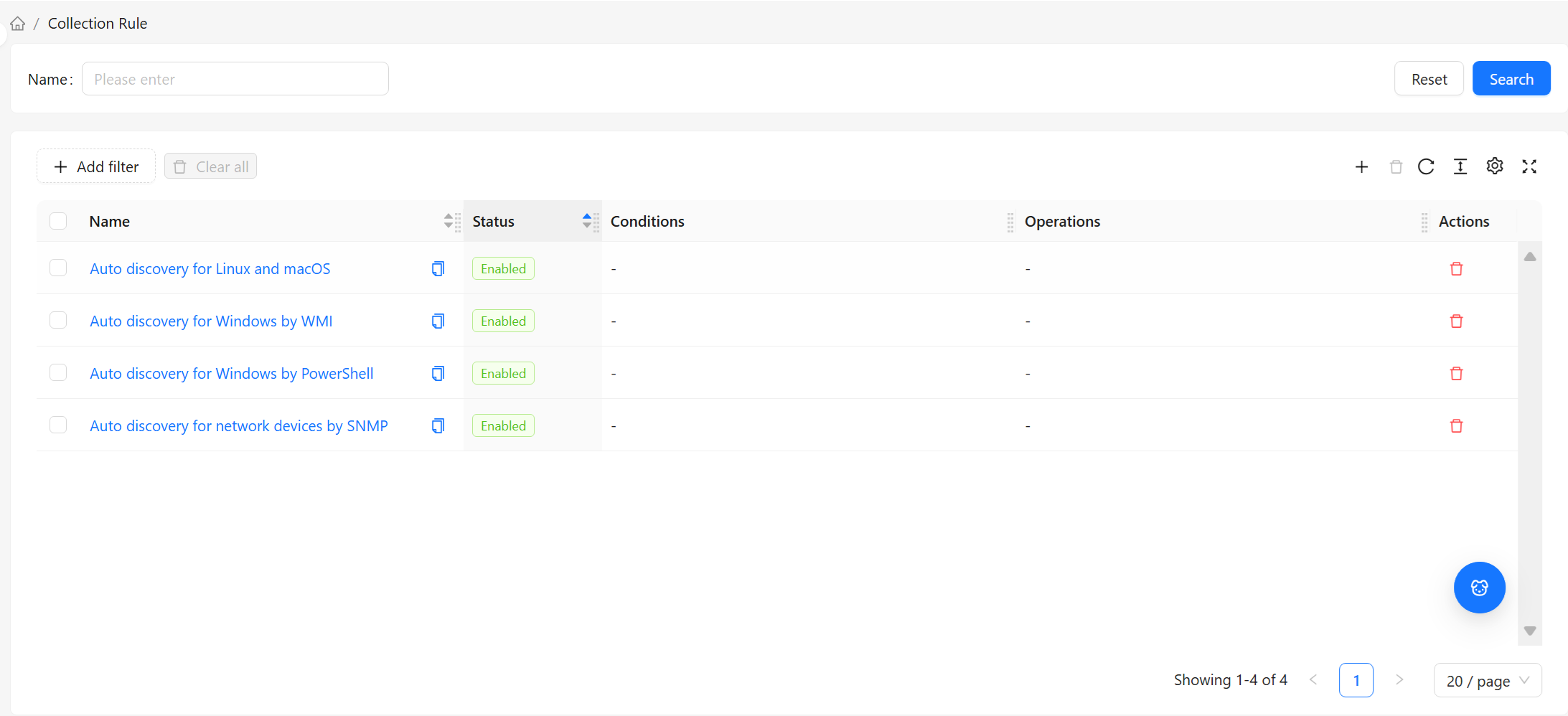
List Page
Default Columns
| Column | Description |
|---|---|
| Name | The rule's name. Click to enter Details |
| Status | Enabled / Disabled. When disabled, the rule no longer takes effect for newly discovered devices |
| Conditions | The device conditions required to trigger the rule, displayed as a readable summary |
| Actions | The list of actions automatically executed upon a match |
For common table operations such as column management, filtering, pagination, and density, see Common Data Table Operations.
Filters
You can filter by condition text and status. For example, to view only currently enabled rules, filter by status.
Top Bar Actions
- New: Create a new rule (see Create & Configure below)
- Bulk Delete: Select multiple rows and delete them at once
- Refresh: Reload the list
Details Page
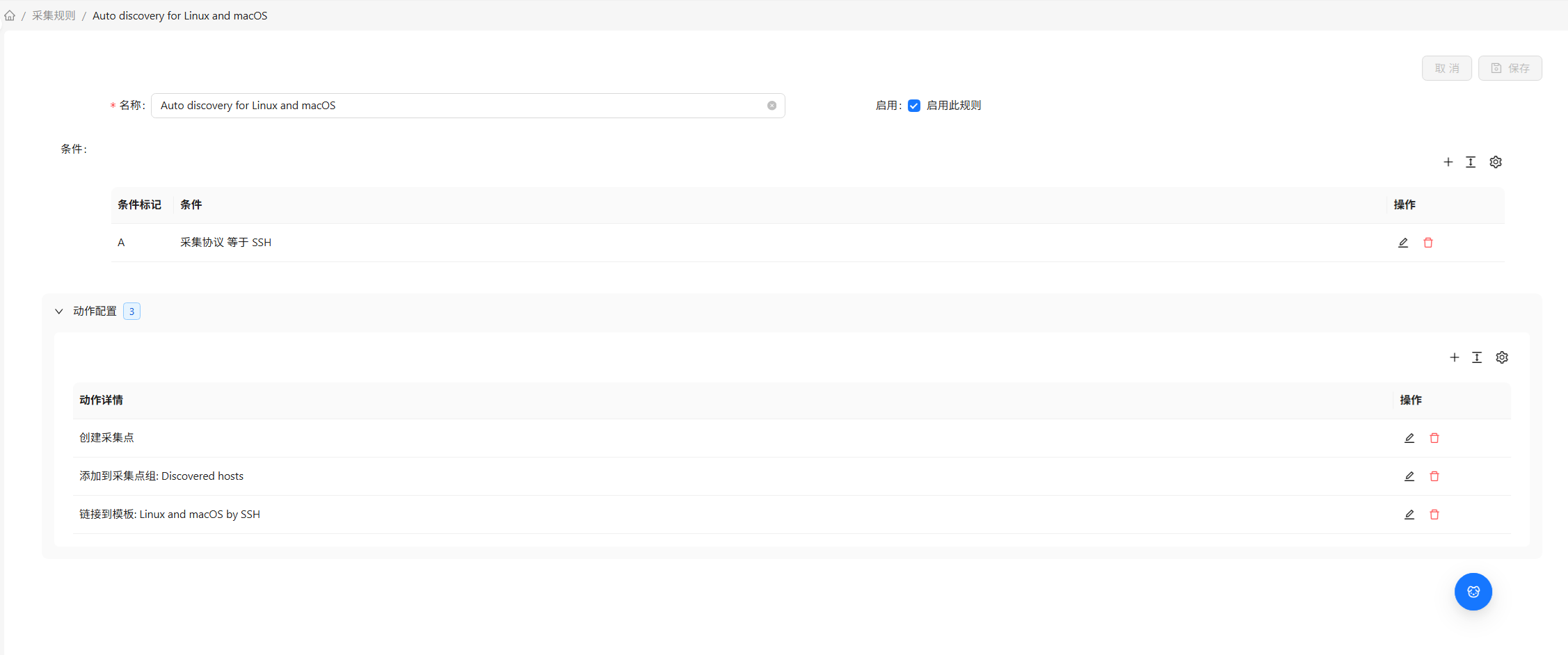
Click a rule name in the list to enter its details page. The details page organizes information into two sections:
| Section | Content |
|---|---|
| Basic Info | The rule's name, status, etc. |
| Actions | Condition definitions + the list of actions executed on match |
At the top of the details page, you can Refresh this rule. For deletion and editing, use the list page.
Create & Configure
When creating a new collection rule, fill in two sections in order. The key to understanding a rule is distinguishing between conditions (which devices will be matched) and actions (what happens when matched).
1. Basic Info
| Field | Required | Description |
|---|---|---|
| Name | Yes | The rule's name, used for identification |
| Status | Yes | Enable / Disable. When disabled, the rule is saved but does not take effect |
2. Actions (Conditions + Actions)
This is the core of the rule. First define the conditions to scope the targets, then define the actions to specify what to do.
Available Condition Types
Conditions determine "what kind of device triggers this rule." Available dimensions include:
| Condition | What It Evaluates |
|---|---|
| Collection Zone | Which collection zone discovered the device |
| Collection Zone Interface | Which probe interface discovered it (e.g., ICMP, SNMP) |
| Collection Protocol | What protocols the device has open |
| Collection Agent | Which agent scanned it |
| Collection Status | The device's current discovery status (e.g., online / offline) |
| Host IP | Whether the device's IP address matches a range |
| Collection Port | Whether a specified port is open |
| Collection Value | Specific values returned by probing |
| Uptime | How long the device has been continuously online |
| Discovered Object | The type of object discovered |
Multiple conditions can be combined — all must be satisfied for the rule to match.
Available Action Types
Actions determine "what to do automatically once matched." Available actions include:
| Action | Effect |
|---|---|
| Add Collection Point | Create the discovered device as a managed collection point (onboard it) |
| Remove Collection Point | Cancel onboarding (the device is no longer collected from) |
| Add to Collection Group | Automatically assign to a specified collection group |
| Remove from Collection Group | Remove from a specified collection group |
| Associate Template | Automatically apply a Collection Template |
| Unlink Template | Remove a template association |
| Enable Collection Point | Start collecting from this device |
| Disable Collection Point | Pause collecting from this device |
| Add Collection Point Tag | Apply a specified tag to the device |
| Remove Collection Point Tag | Remove a specified tag |
When an action includes Associate Template, the form lists the selected template's declared macros as editable inputs (action-level macro overrides) before saving. If the template references login credential macros — such as {$SSH.USERNAME} / {$SSH.PASSWORD}, {$SNMP_COMMUNITY} — it is recommended to fill in the values here.
Once filled, when a matching device is automatically created as a collection point, these credentials are applied along with the macros (collection point-level macros override template macros of the same name — see Collection Point Details — Macros). The collection point comes online with credentials ready, so CI Discovery / auto-discovery can run immediately. Otherwise, the new collection point has no credentials and you would need to add them one by one afterward — essentially reverting "auto-onboarding" back to "semi-automatic."
Enter credential values only in the rule (or on the collection point or collection point prototype) — do not write them as default values into the template itself. See Collection Template for why.
The most practical auto-onboarding rule usually needs only: condition = "discovered by a certain collection zone", action = "Add Collection Point + Associate Template + Add to Collection Group." After these three steps, a new device automatically becomes a fully configured collection point that starts producing data.
When done, click Save. The rule takes effect immediately. From then on, whenever Collection Zone discovers a matching device, the onboarding actions fire automatically.
Common Scenarios
Scenario 1: Automatic onboarding of network devices
- Collection Zone A is already scanning the network device segment
- Create a new collection rule: conditions = "Collection Zone is A" + "Collection Protocol is SNMP"; actions = "Add Collection Point" + "Associate 'General Network' template" + "Add to 'Network Devices' group"
- Save and enable. From now on, devices discovered by A with SNMP enabled will automatically become fully configured collection points
Scenario 2: Temporarily pause auto-onboarding
When device turnover is frequent and you don't want the rule to keep auto-onboarding: toggle the rule's Status to "Disabled." Already-onboarded collection points are unaffected — only new devices stop being processed automatically.