Global Search
Overview
Global search is a quick retrieval feature provided by the Huayang CMDB system, helping you quickly find target resources among all CIs by keyword. Whether you need to find servers, network devices, application systems, or other CIs, global search can help you locate them quickly.
What this feature can do for you:
- Quickly find any CI by keyword
- Support fuzzy matching without needing to enter the exact full name
- Display search results in real time without waiting
Main Features
- Instant Search: Enter a keyword to see matching results in real time
- Smart Ranking: Search results are sorted by relevance — the higher the keyword match, the higher the ranking
- Quick Navigation: Click on a search result to jump to the CI detail page
Interface Layout
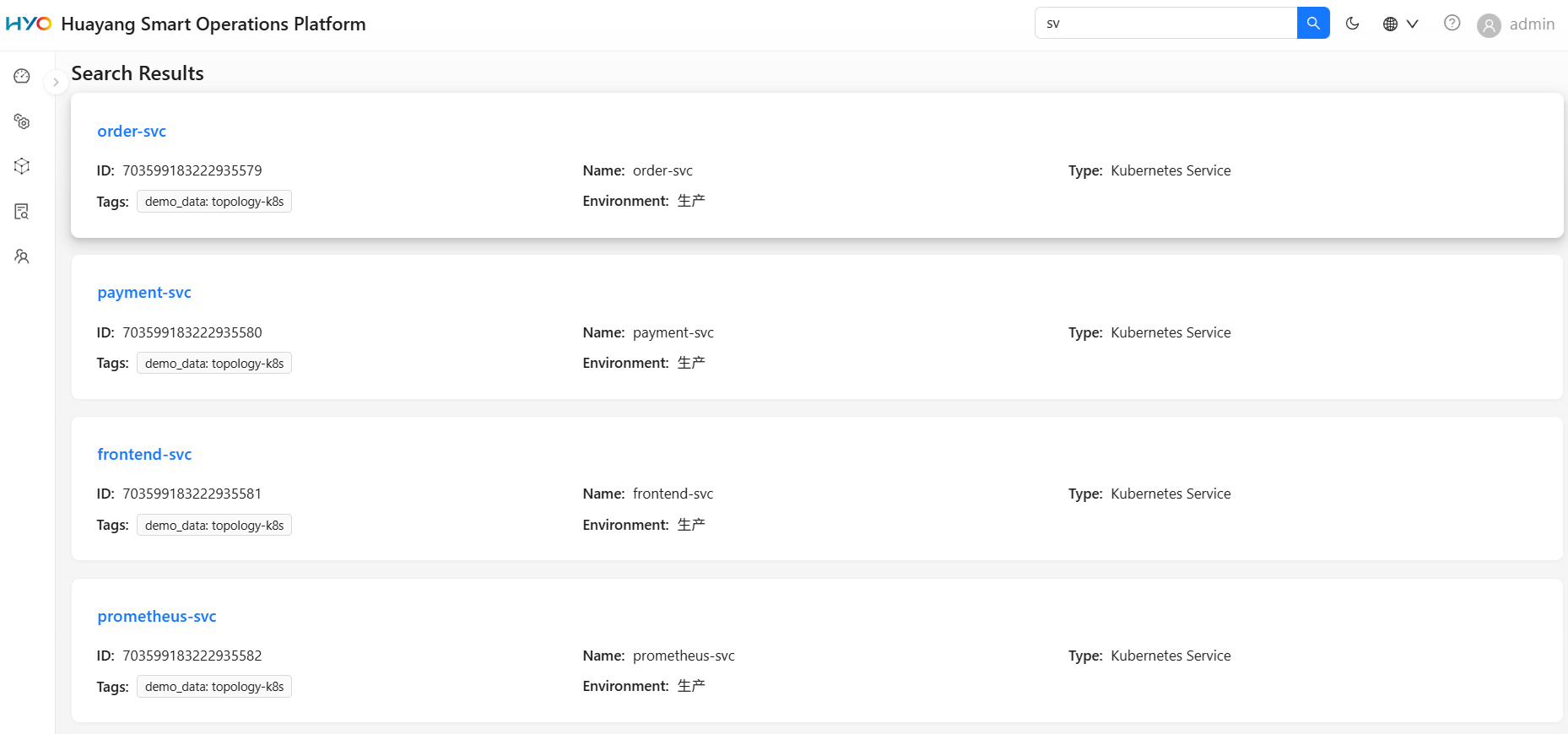
Search Area
The search area at the top of the page provides keyword input functionality:
- Search Box: Enter the keyword to search for
- Search Button: Click to execute the search
Results Area
Search results are displayed as cards, each containing the following fields:
| Field | Description | Example |
|---|---|---|
| ID | Unique identifier of the CI | 689498464756830210 |
| Name | CI name (clickable to navigate to detail page) | Web Server 01 |
| Type | Translated display name of the CI type | Server |
| Tags | CI tag information, displayed as key: value format | env:prod, os:linux |
| Environment | Environment the CI belongs to | Production |
| Description | CI description | Production Web Server |
| Comments | CI notes | 2024 maintenance records |
Pagination Controls
When there are many search results, pagination navigation is provided at the bottom of the page:
- Current page / Total pages: Shows current position
- Items per page: Default 10 results per page
- Page navigation: Quick page turning
How to Use
Performing a Basic Search
- Enter a keyword in the search box at the top of the page
- Click the Search button or press Enter
- The system displays matching CIs in the search results area
Example: Find all CIs related to "Web"
- Type "Web" in the search box
- Click the search button
- View results including Web servers, Web applications, etc.
Viewing Search Result Details
- Find the target CI in the search results
- Click the hyperlink of the CI name in the card header
- The system navigates to the CI's detail page
Using Pagination to Browse
- When search results exceed 10 items, pagination controls are displayed
- Click page numbers or use the "Previous/Next" buttons to browse more results
Search Result Details
Matched Fields
The search matches the following CI fields:
| Field | Description | Example |
|---|---|---|
| Name (name) | CI name | Web Server 01 |
| Display Label (display_label) | CI display name | Web Server-01 |
| Description (description) | CI description | Production Web Server |
| Environment (environment) | CI environment | Production |
| Tags (tags) | CI tags | web, production |
| Comments (comments) | CI comments | 2024 maintenance records |
Frequently Asked Questions
Q: What if I can't find the expected results?
A: Try the following:
- Check if the keyword spelling is correct
- Try using a shorter keyword (e.g., "server" instead of "Web application server")
Q: How to quickly locate items when there are too many results?
A:
- Use more specific keywords
- Use pagination to browse step by step
- Filter by CI type
Q: Why is the search response slow?
A: Search performance may be affected by:
- Large number of CIs in the database
- Network latency
- High server load
It's recommended to use search during off-peak hours or when network conditions are good.
Related Features
- CI Directory: Browse all CIs
- CI List: View CIs by list view
- Query Studio: Create custom queries