Attribute Management
Overview
The Attributes tab is used to manage the attribute fields of CI types. Attributes are the basic data units of CIs, defining what information a CI can store.
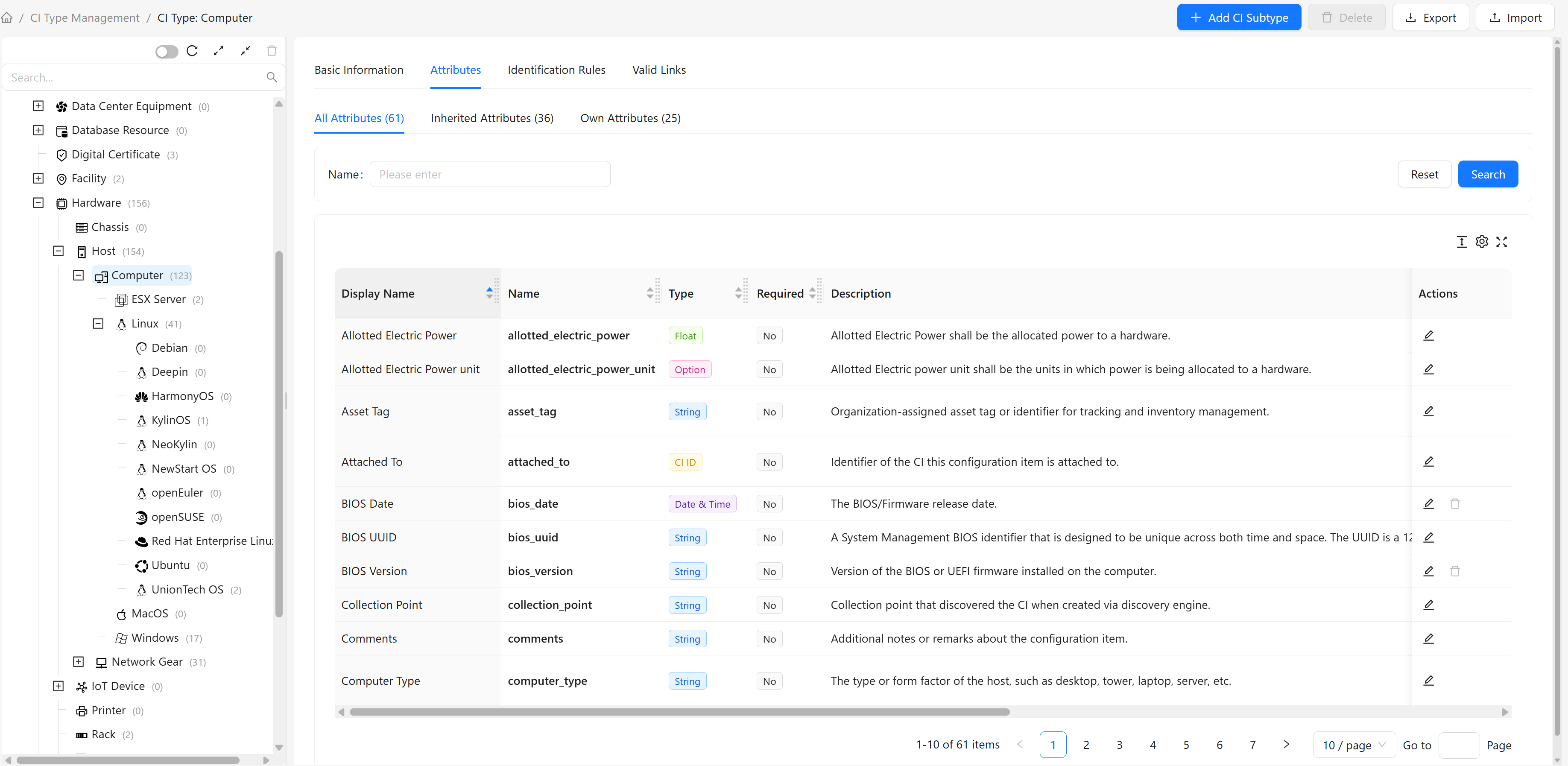
Each CI type can define multiple attributes. For example, the Computer type can define attributes like Memory, FQDN, OS Version, etc.
Attribute Categories
The Attributes tab contains three sub-tabs for viewing attributes from different sources:
| Sub-tab | Description | Content |
|---|---|---|
| All Attributes | Shows all available attributes | Current type's own attributes + inherited attributes from parent types |
| Inherited Attributes | Shows only inherited attributes | All attributes inherited from parent types |
| Own Attributes | Shows only own attributes | Attributes defined directly by the current type (not inherited) |
Inheritance Mechanism
Subtypes automatically inherit all attributes from their parent type. For example:
Computertype definesFQDN,OS VersionattributesLinuxinherits fromComputerand automatically has these two attributesLinuxcan then define its own attributes likeDistribution
Attribute Types
The system supports the following attribute types:
| Type | Description | Example Use |
|---|---|---|
| String | Longer text | Description information |
| Integer | Whole numbers | CPU core count, port number |
| Long Integer | Large integers | Memory size (MB) |
| Float | Decimal numbers | CPU usage |
| Double | High-precision decimals | Geographic coordinates |
| Datetime | Date and time | Creation time, update time |
| Boolean | Yes/No | Enabled, online status |
| String List | Multiple string values | Tags, DNS servers |
| Integer List | Multiple integer values | Open port list |
| Key-Value List | Key-value pair collection | Custom tags, environment variables |
| Option | Predefined option list | OS type, status |
| CI ID | Reference to another CI | Attached CI |
| IP Address | IP address format | Primary IP, backup IP |
| URL | URL format | Management address, download address |
| Email address format | Contact email | |
| Binary | Binary data | File content, certificates |
Adding Attributes
Steps
- Switch to the "Own Attributes" sub-tab
- Click the "Add Attribute" button in the top toolbar
- Fill in attribute information in the popup dialog
Attribute Field Reference
| Field | Description | When to Use |
|---|---|---|
| Name | Unique identifier for the attribute, must start with a letter, can only contain letters, numbers, and underscores | Defined when creating; cannot be modified after creation |
| Display Name | Display name for the attribute | When users need to easily identify it |
| Type | Data type of the attribute | Defined when creating; cannot be modified after creation |
| Option Type | Data source for options | Only needed when type is "Option"; specifies the source of options |
| Description | Purpose description of the attribute | Helps users understand the attribute's purpose |
| Group | Attribute group membership | For organizing related attributes; displayed grouped on CI detail pages; attributes in "Basic Information" group are shown as default columns in instance lists |
| Max Length | Maximum value length | Effective for string, URL, integer list types; limits character count or element count |
| Default Value | Default value for the attribute | When most instances use the same value |
| Required | Whether it's a required field | Key information should be set as required |
| Read-only | Whether the value is read-only on the interface | Attributes not allowed to be modified by users on the interface (does not affect API) |
| Hidden | Whether the attribute is hidden on the interface | Sensitive or rarely used attributes (does not affect API) |
| Track History | Whether to record attribute change history | When attribute changes need auditing |
| Index | Whether to create an index for the attribute | When the attribute is frequently queried |
Note: "Track History" and "Index" options may affect system performance. Enable with caution:
- Enabling "Track History" causes the system to record history data for every change to the attribute, significantly increasing data volume
- Enabling "Index" requires the system to maintain index structures for the attribute, which may affect write performance with large data volumes
- It's recommended to only enable these for attributes that truly need frequent querying or audit tracking |
Editing Attributes
Steps
- Find the attribute to edit in the attribute list
- Click the "Edit" button on that row
- Modify attribute information in the popup dialog
- Click "OK" to save changes
Note:
- Attribute name cannot be modified after creation
- Attribute type cannot be modified after creation
- Modifying attribute definitions may affect existing CI data
Deleting Attributes
Steps
- Find the attribute to delete in the attribute list
- Click the "Delete" button on that row
- Click "OK" in the confirmation dialog
Restrictions:
- Only own attributes can be deleted; inherited attributes cannot be deleted
- System built-in attributes cannot be deleted
- If CIs are already using the attribute to store data, confirm before deleting
Frequently Asked Questions
Q: Where are option type options defined?
A: Option type options are defined in the "Option List" module. When creating an option attribute, you need to select an existing option list. See Option Management documentation for details.