CI List Configuration
Overview
The CI List Configuration page is used to create and edit list views. By configuring the root CI type, type filters, and attribute conditions, you can precisely control which CIs are displayed in the list.
Interface Layout
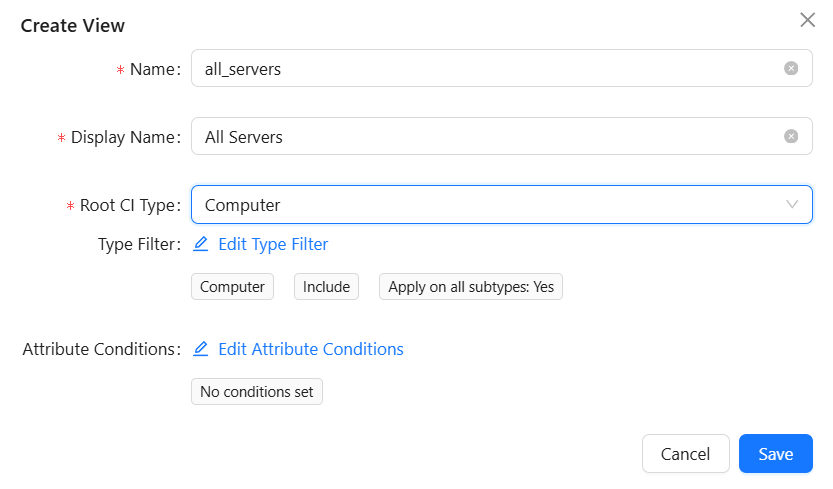
Basic Information Configuration
Name
Purpose: Unique identifier for the list, used for internal system reference.
Rules:
- Required field
- Can only contain letters, numbers, underscores, and hyphens
- Cannot be modified after creation
- Must be unique across the system
Examples:
- "all_servers" - "All Servers"
- "production_apps" - "Production Applications"
- "error_servers" - "Error Servers"
Display Name
Purpose: The name displayed in the interface for the list view.
Description:
- Required field
- Displayed in the left list panel
Root CI Type
The root CI type is the data source for the list view, determining which CIs are queried.
How to Select
- Click the "Root CI Type" dropdown
- Select the desired type from the CI type tree
- The system automatically loads the attribute information for that type
Impact of Root CI Type Selection
After selecting a root CI type:
- Table columns are dynamically generated based on that type's attributes
- Attribute conditions display the available attributes for that type
- Type configuration displays the subtypes of that type
Type Filter
Type filters control how the root CI type and its subtypes are filtered, determining whether to include all or part of the subtypes. You must select a root CI type before configuring type filters. Click the "Edit Type Filter" button to open a popup with three filter options: Include Subtypes, Self Only, and Custom Types.
For details on the three filter options, see Type Filter Configuration
Example Use Cases:
- To manage all domestic OS computers, select
Linuxas the root CI type and use Custom Types to select subtypes such asEuler,Kylin OS,NeoKylin, etc. to create a list view - To manage all infrastructure applications in the company, select
Applicationas the root CI type and use Custom Types to selectLDAP Service,Active Directory Service,Email Server,FTP Server, etc. to create a list view
Attribute Conditions
Attribute conditions are used to precisely filter CIs, displaying only those that meet specific conditions. You must select a root CI type before adding attribute conditions.
For details on attribute condition configuration, see Attribute Filter Configuration
Configuration Examples
Scenario 1: Create a High-Spec Domestic Server List (Combining Type Filter and Attribute Conditions)
Business Need: Create a high-spec domestic server list, using type filters to control the included server types and attribute conditions to further filter high-configuration servers.
Configuration Steps:
- Fill in the basic information:
- Name: "high_end_domestic_servers"
- Display Name: "All High-Spec Domestic Servers"
- Select root CI type:
Linux - Type filter:
- Filter type: Custom Types
- Select subtypes:
HarmonyOS,NSFOCUS Secure OS,Deepin,Kylin OS,UOS,NeoKylin
- Attribute conditions:
- Attribute:
Memory (MB)greater than or equal to "128000" - And Attribute:
CPU Countgreater than or equal to "32"
- Attribute:
Expected Result:
- The list includes domestic OS Linux servers with high CPU count and memory
- Includes HarmonyOS, NSFOCUS Secure OS, Euler, Deepin, Kylin OS, UOS, NeoKylin and other subtypes
Scenario 2: Create a "Production Applications" List
Business Need: Create a list that only displays production environment applications.
Configuration Steps:
-
Fill in the basic information:
- Name: "production_apps"
- Display Name: "Production Applications"
-
Select root CI type:
Application -
Type filter:
- Include Subtypes
-
Configure attribute conditions:
- Attribute:
Environment - Operator: equals
- Value:
Production
- Attribute:
Expected Result:
- The list only displays applications where the environment attribute is "Production"
- Excludes test and development environment applications
Frequently Asked Questions
Q: Can the root CI type be changed after selection?
A: Yes. However, changing it requires reconfiguring the type filter and attribute conditions, since attributes are specific to a particular type.
Q: Are configurations copied when cloning a list view?
A: Yes. Cloning copies all configurations except the name, including type filter and attribute conditions. You can modify the name and save to create a similar new list view.
Q: Does the list view configuration take effect immediately after saving?
A: Yes. After saving, the list view updates immediately, and the right-side CI list displays data according to the new configuration.